Monday, June 26, 2017

Dynamics GP–Combine Multiple Budgets into a Master Budget

image
Figure 1 – Budget Maintenance window in Dynamics GP
You can combine multiple General Ledger budgets into a single, master budget, one budget at a time. The master budget can be completely new and have its own budget ID, or it can be one of the two original budgets. This feature is helpful when multiple departments in your organization create their own budgets, which must then be consolidated. The new Combine Budgets window simplifies this process.
image
Figure 2 – Combine Budgets window in Dynamics GP
After you have completed the Combine Budgets process, you can use the Budget Selection window (Financial >> Cards >> Financial >> Budgets) to view all budgets in the system, including budgets created in Excel and imported into Microsoft Dynamics GP.
For more information on Dynamics GP or to ask questions about how we can help you with a Dynamics ERP implementation, send an email to Support@dynamicsmct.com or call us at Toll Free:  +1.780-555-6144.
Submitted by Judith Hirst CPA, CMA MCP Senior Financial Analyst
www.dynamicsmct.com

Thursday, June 22, 2017

Tool Tip - Calculate How Many Working Days and Public Holidays For HR and Payroll

image

Figure 1 – Screen shot of Calendar for "How many working days and public holidays from date to date"

If you ever have to figure out the number of working days and public holidays from one date to another, the website http://www.workingdays.ca/Alberta.htm#aepd is the perfect tool to use to come up with the correct number of days. 

This window has multiple uses:

1. Use it to calculate a payout for an employee that is leaving

2. Use it to calculate the number of days and vacation for budgeting for the next fiscal year – it goes out to future years

3. Use it to fix the public holiday dates for sending out the notice for the upcoming year statutory days

4. Use it to check statutory days between Canada and the United States for planning purposes when the company works in both countries

5. Use it for planning weekend shifts for manufacturing shifts and for retail shifts

Using the Calendar function is much faster than counting the days manually on a calendar.

For other tips and tool tricks, keep reading this blog. 

Please contact us for more information on Dynamics ERP capabilities or to find out how we can help you with a Dynamics implementation.

Send an email to Support@dynamicsmct.com or call us at Toll Free:  +1.780-555-6144.

Submitted by Judith Hirst CPA, CMA MCP Senior Financial Analyst

www.dynamicsmct.com

Tuesday, June 20, 2017

Free Tool - Back Up Dynamics GP to Azure Server


image

Figure 1 – Slide showing that you can backup the GP database to Azure

Backing up data is one of the most important functions that companies can do on a daily basis. Most companies will back up their data to a local server on premises.  If there is a major issue such as fire or flood, that backup may not provide the safety net that companies believe that they have.

Many Dynamics GP users do not realize that they can backup their Dynamics GP directly to an Azure server thereby having a secure copy of their backup in the cloud.

Here is how it works.  Only the system administrator can open the Back Up Company window to make backups. The Back Up Company window is only available when using a Microsoft Dynamics GP installation on the SQL Server.  The administrator may choose to back up either the Company database or the System database.

image

Figure 2 – Back Up Company Window from Dynamics GP 2015 R2

Here is a list of the data that should be backed up.

image

Figure 3 – Dynamics GP files and databases that should be part of the backup

Please contact us for more information on managing back ups or contact us about  how we can help you with a Dynamics implementation or upgrade.

Send an email to Support@dynamicsmct.com or call us at Toll Free:  +1.780-555-6144.

Submitted by Judith Hirst CPA, CMA MCP Senior Financial Analyst

www.dynamicsmct.com

Thursday, June 15, 2017

What Does The Purchase Order Status Mean In Dynamics GP?

image

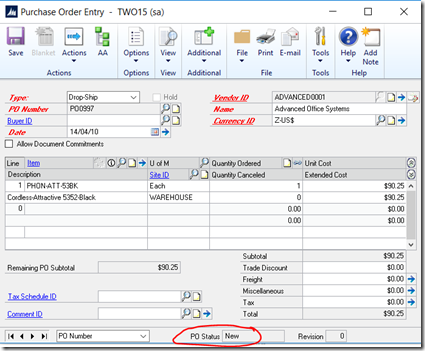
Figure 1 – Purchase Order window in Dynamics GP showing a PO Status of New

We all know that we can use the Purchase Order Entry window to enter purchase orders and to modify purchase orders with New, Released, and Change Order statuses. You also can delete or void purchase orders with a New status (purchase orders that have never been printed or sent to the vendor).

However, GP users often ask what the purchase order statuses mean, and they ask what the status does in the system.  Here is the explanation of all of the status notices on a purchase order.

The different types of purchase order statuses are as follows.

1. New
A purchase order is assigned a New status when it is saved for the first time, and before it has been released to the vendor. A new purchase order can exist without line items. If you change a new purchase order, the purchase order still has a New status. The inventory quantities are not adjusted when the new purchase order is entered. The inventory quantities are adjusted when the purchase order line status changes to a Released status.
2. Released
A Released status indicates that the purchase order has been sent to the vendor. A new purchase order is assigned a Released status if at least one purchase order line changes from a New status to a Released status. Or, a new purchase order is assigned a Released status if a receipt is posted. If a change order purchase order is printed, it changes the status to Released. Additionally, this change results in at least one released purchase order line. This change also results in no remaining change order purchase order lines.
When a purchase order has a Released status, the following amounts increase for any purchase order lines that change to a Released status:
  • Inventory on Order Quantity
  • Item/Vendor on Order Quantity
  • Vendor on Order Currency
3. Received
A purchase order is assigned a Received status if there are no quantities remaining to receive, and if there are quantities that remain to be invoiced. A purchase order that has a Received status can have a combination of the following line items:
  • Received
  • Canceled
  • Closed
4. Change Order
A Change Order status notifies users that the original order is no longer valid. If a purchase order that has a Released status is edited in a manner that affects the vendor, the purchase order is assigned a Change Order status, and the revision number increases. Use the revision number to make sure that you and the vendor refer to the same order. The revision number does not increase if you change a purchase order that already has a Change Order status.
5. Canceled

A Canceled status indicates that the purchase order will not be processed any more. A purchase order is assigned a Canceled status if all the line items have been canceled, and if no amounts have been received against the line items.

To change a Canceled status, change at least one of the canceled line items to a New status or to a Change Order status.
You can transfer a purchase order that has a Canceled status to history. To do this, use the Remove Completed Purchase Orders window. You can remove the purchase order by using the Remove Purchasing History window.

6. Closed

A purchase order is assigned the Closed status if all the line items have been closed, and if there are no remaining quantities to receive or to match to invoices. A purchase order that has a Closed status can also have canceled lines.

Contact us if your company has questions or issues with purchase orders.  The team at Dynamics MCT Consulting  provides a full range of Microsoft Dynamics services.  For more information on Dynamics GP or to ask questions about how we can help you with a Dynamics implementation, send an email to Support@dynamicsmct.com or call us at Toll Free:  +1.780-555-6144.

Submitted by Judith Hirst CPA, CMA MCP Senior Financial Analyst

www.dynamicsmct.com