Showing posts with label Reporting. Show all posts

Monday, June 26, 2017

Dynamics GP–Combine Multiple Budgets into a Master Budget

image
Figure 1 – Budget Maintenance window in Dynamics GP
You can combine multiple General Ledger budgets into a single, master budget, one budget at a time. The master budget can be completely new and have its own budget ID, or it can be one of the two original budgets. This feature is helpful when multiple departments in your organization create their own budgets, which must then be consolidated. The new Combine Budgets window simplifies this process.
image
Figure 2 – Combine Budgets window in Dynamics GP
After you have completed the Combine Budgets process, you can use the Budget Selection window (Financial >> Cards >> Financial >> Budgets) to view all budgets in the system, including budgets created in Excel and imported into Microsoft Dynamics GP.
For more information on Dynamics GP or to ask questions about how we can help you with a Dynamics ERP implementation, send an email to Support@dynamicsmct.com or call us at Toll Free:  +1.780-555-6144.
Submitted by Judith Hirst CPA, CMA MCP Senior Financial Analyst
www.dynamicsmct.com

Tuesday, June 13, 2017

Jet Reports 2017 R2 Has Been Released With New Features

image

Figure 1 –  Income Statement by Month from Jet Reports

Jet Reports 2017 R2 represents significant enhancements for how you can manage, run and view your business reports in Jet Professional and Jet Enterprise. 

The following information comes from the Jet Reports publication on the new features in release 2017 R2.

New Features Available in Jet Reports 2017 R2

image

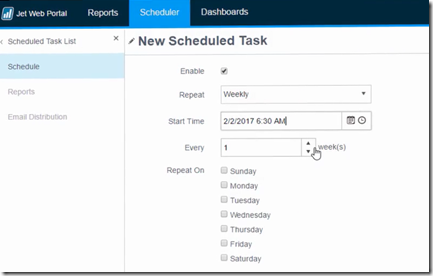
Figure 2 – Jet Web Portal Scheduler

Web Scheduling - Jet Professional 2017 R2 introduces a web-based scheduler for reports. Jet Web Portal users can now easily set
their Jet reports to run on a monthly, weekly, daily, or even more frequent basis and be distributed via email.  Users can create a schedule, and then set up one or multiple reports to be run and distributed via email.  The scheduling capability is quite flexible, and makes it easy to set up schedules for:
• The last day of the month
• The first Monday of the month
• Every hour between 8am and 5pm
• And much more

New Drilldown Features… 

Drilldown Available in Web Portal Reports -   When a user downloads a report from the Jet Web Portal they can now click on a cell to see the underlying data.

Drilldown for Dynamics GP GL function - Dynamics GP users can now drilldown into their GL queries to see the underlying financial transactions. This allows users to quickly get a deep understanding of their finances.

Report Options tool

Designers can use a new Report Options tool to quickly create and manage user-selectable parameters/filters on their reports. This speeds up report creation and makes it easier to learn how to the report options window feature.

No longer do you need to add tags for ‘title’, ‘value’, ‘option’ etc. to create a report options window. A simple tool now takes care of this for you.

Does your finance team have an interest in Jet Reports?  Contact us.  The team at Dynamics MCT Consulting  provides a full range of Microsoft Dynamics services.  For more information on Jet Reports or to ask questions about how we can help you with a Dynamics implementation, send an email to Support@dynamicsmct.com or call us at Toll Free:  +1.780-555-6144.

Submitted by Judith Hirst CPA, CMA MCP Senior Financial Analyst

www.dynamicsmct.com

Thursday, June 8, 2017

How To Use The Purchasing All-in-One View in Dynamics GP 2015/2016

image

Figure 1 – Purchasing All-in-One View in GP 2015 R2


One of the new features in GP 2015/2016 is the ALL-IN-ONE VIEW. It is a nifty tool that can save a user a lot of look up time because all of the information is in one place.

The Purchasing All-in-One View window is  available for locating vendor records and displaying related purchasing documents in the same window.  That makes life easier!

When you open the Purchasing All-in-One View window from Purchasing >> Inquiry >> All-in-One View, or Home >>
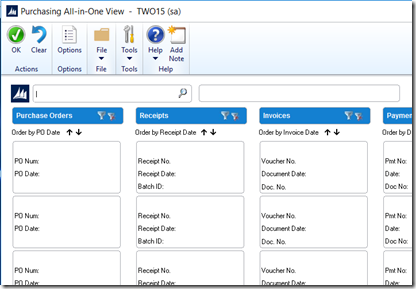
Quick Links >> All-in-One View, the window opens without any data. You can specify the vendor and the details of the information to display in the window. Mark the checkbox in the upper right corner of the document to display only the related documents as in Figure 2 below.
image

Figure 2 – The blank Purchasing All-IN-ONE VIEW

For example, suppose a vendor calls asking about a specific payment. You can use the Purchasing All-in-One View window to select that vendor and then view all documents related to the payment, such as
the PO, receipt, invoice, credits, miscellaneous charges and finance charges, and payment to assist you in responding to your vendor ’s inquiries.


You can access the Purchasing All-in-One View window from the following windows and navigation lists:
• Your home page
• Vendor Maintenance
• Purchase Order Processing Document Inquiry
• Vendor Inquiry
• Payables Transaction Inquiry - Vendor
• Payables Transaction Inquiry – Document
• Purchase Order Processing Document Inquiry
• Purchase Order Processing Item Inquiry
• Navigation Lists and any views of these lists
 Vendors
 All Purchasing Transactions
 Payables Transactions
 Purchase Order Transactions

The icon for the Purchasing All-in-One View window is available only if a single record is selected in the navigation list. The data that’s displayed in the Purchasing All-in-One View window depends on your selection in the navigation list. For example, if you select only a vendor record in the navigation list, the vendor ID and name information are displayed in the Purchasing All-in-One View window. If you select a transaction in the navigation list, the vendor ID, name and
transaction information are displayed.

Use the Filter Icon to select additional information as in Figure 3 below. The clear filters icon will reset the filters back to the default selection.

image

Figure 3 – The Filter Icon is available on each column for Purchase Orders, Receipts, Invoices, Payments, and Returns.

Does your team need some one-on-one training on the tool.  Contact us.  The team at Dynamics MCT Consulting  provides a full range of Microsoft Dynamics services.  Please contact us for more information on capabilities or how we can help you with a Dynamics implementation.

Send an email to Support@dynamicsmct.com or call us at Toll Free:  +1.780-555-6144.

Submitted by Judith Hirst CPA, CMA MCP Senior Financial Analyst

www.dynamicsmct.com

Thursday, June 1, 2017

Free Job Close Assist Report for Key2Act and Dynamics GP

image

Figure 1 – The banner at Implementation Specialists showing the two free report tools available

Job cost closing can sometimes be a time consuming process.  Often, the job that we should be able to close does not show on the Job Cost Closing window, and then we have to figure out what is going on with the job.  Wouldn't it make life easier if there was a report that told the user what transaction is holding up the job from closing?

wsTools

Well, the folks at Implementation Specialists (www.iscorp.biz/solutions/wstools/) have created this report.  And, they are offering it for free, along with their PTO Liability Report. To provide some background, the team at Implementation Specialists have created a set of wsTools that provide a quick solution to job cost and service tasks.  The two free reports are part of the wsTools.

PTO Liability Report

About the PTO Liability Report -  It is only available for the US Payroll module.  It provides an easier way to sum up employee sick time and vacation time accruals by department that’s been formatted to copy/paste into GL.

Job Cost Close Assist Report

About the Job Cost Close Assist Report - For KEY2ACT Job Cost users, save time and avoid the frustration in trying to figure out why a job will not close. "Job Cost Close Assist" will show you in one simple report, the items that are preventing you from closing a job.  The report is an SSRS report that runs for an individual job, and produces a report like the one in Figure 2 below.

image

Figure 2 – Sample of the Job Closing Report

You can look at all of the tools available at Implementation Specialists by checking the wsTools library at www.iscorp.biz/solutions/wstools/.

To get your free copy of the Job Close Assist Report or to see a demo of any of the other wsTools, you can contact us  at Dynamics MCT Consulting.   Send an email to Support@dynamicsmct.com or call us at Toll Free:  +1.780-555-6144.

Submitted by Judith Hirst CPA, CMA MCP Senior Financial Analyst

www.dynamicsmct.com